
How to clean a laptop safely?
Practical laptop cleaning advice: dust, fans, vents, thermal paste, overheating symptoms and when professional cleaning is safer.
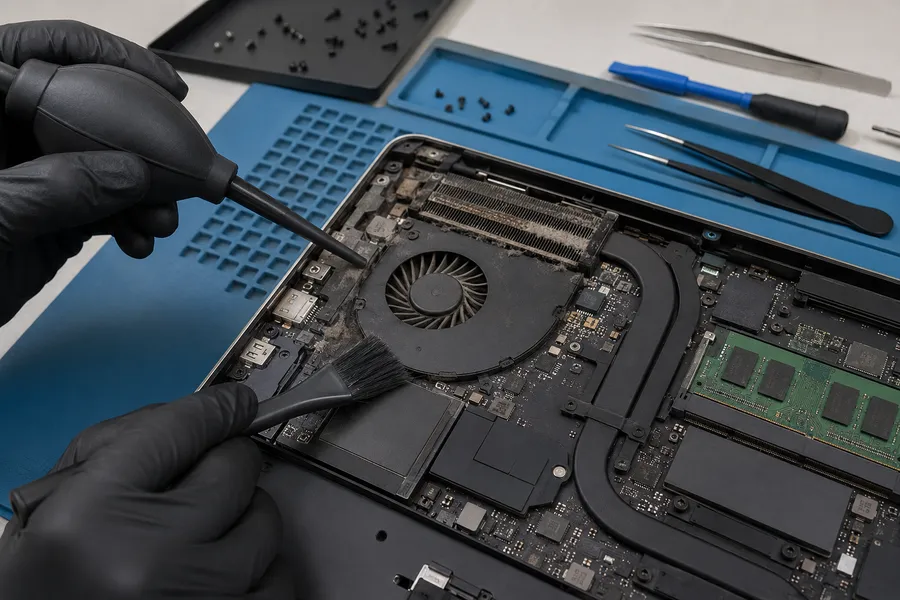
Why do laptops get dirty inside?
A laptop constantly draws air through its vents to cool the processor, graphics chip and other components. Along with air comes dust, fibres, pet hair and fine particles. Over time these build up on the heatsink fins and fan blades, reducing airflow.
The result is higher operating temperatures, louder fan noise, performance throttling, random freezes or unexpected shutdowns under load.
External cleaning - what you can do yourself
The outside of a laptop is straightforward to maintain. You can:
- wipe the lid and base with a slightly damp microfibre cloth,
- clean the keyboard surface gently with a dry cloth or a soft brush,
- avoid placing the laptop on soft surfaces like beds or sofas that block the vents,
- use a flat, hard surface so air can circulate freely underneath.
Internal cleaning - what to be careful about
Cleaning the fan and heatsink from the inside is more involved and carries some risk if you are not familiar with the laptop's construction. A few points to keep in mind:
- you can blow short bursts of compressed air through the vent openings to push some dust out - hold the fan blades still with a finger or a toothpick first so they do not spin at excessive speed,
- do not spray liquid of any kind directly into the laptop,
- do not force the case open if you are not sure how the clips and screws work - laptop housings can break,
- if the dust is packed tightly into the heatsink fins, air from outside will not dislodge it effectively.
Overheating symptoms to watch for
- fan running constantly at high speed even during light tasks,
- laptop is hot to the touch on the underside or near the keyboard,
- system slows down under load and speeds up again when you stop what you were doing,
- unexpected shutdowns or restarts with no warning.
Thermal paste and thermal pads
Thermal paste sits between the processor (and sometimes the GPU) and the heatsink plate. It fills microscopic gaps and improves heat transfer. Over several years it dries out and loses effectiveness, which raises temperatures even on a clean laptop.
Thermal pads do a similar job for other components, but their thickness matters. Fitting pads of the wrong thickness - too thin or too thick - can actually make cooling worse because the heatsink will not press against the chip correctly.
Replacing thermal paste and pads correctly requires opening the laptop and knowing what you are doing. Read more about professional cooling service: Laptop cleaning Warsaw.
When to take the laptop to a technician
- the laptop overheats, throttles or shuts down under load,
- fan runs loudly all the time even when idle,
- compressed air through the vents did not help,
- the case is difficult to open without risking damage,
- the laptop was exposed to liquid,
- it is a gaming or workstation laptop with a complex cooling assembly.
Related services
FAQ
Typically every 12 to 24 months, depending on the environment - more often if you have pets, a dusty workspace or use the laptop heavily. Gaming laptops often need cleaning more frequently.
Yes, with care. Hold the fan blades still before blowing, use short bursts and keep the can upright to avoid spraying moisture. It helps with loose surface dust but may not clear a packed heatsink.
Not always. If the heatsink is clogged with dust, the full cooling assembly needs cleaning first. Paste alone will not compensate for blocked airflow.
Need an initial device assessment?
Initial assessment of repair feasibility at MAdKuM is free. Briefly describe the problem, provide the device model, and book an appointment.