
Computer or laptop turns on but shows no image - what can it mean?
Common reasons why a computer or laptop powers on but shows no image: screen, RAM, GPU, motherboard, BIOS, cable and power issues.
What does the symptom look like?
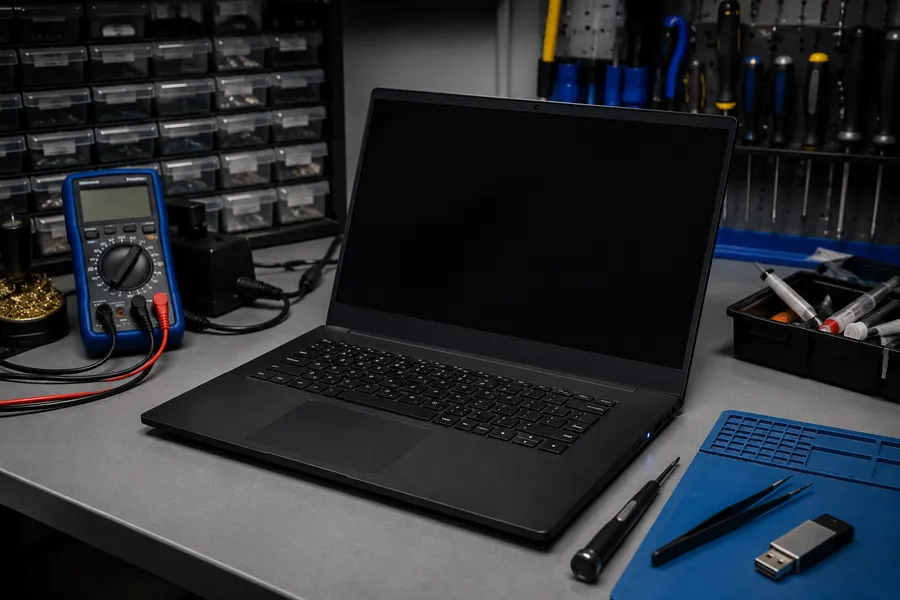
The power light comes on, fans spin, the keyboard backlight may activate - but the screen stays completely black. This is one of the more common and frustrating hardware symptoms because it can have many different causes.
It is important to distinguish between: a screen that is physically off, a screen showing a backlit image that is too dim to see, a screen that is simply not receiving a signal, and a computer that never completes its startup sequence at all.
First check for a laptop - try an external monitor
Connect the laptop to an external monitor or TV via HDMI or VGA. If the external screen shows an image, the built-in display or its cable is likely the cause. If neither screen shows anything, the issue is elsewhere in the system.
Common causes
Display and cable issues
- the internal LCD panel has failed,
- the display cable running from the motherboard to the screen is damaged or loose,
- the display backlight has failed (screen appears to work but is almost invisible in bright light).
RAM problems
- a memory stick has failed or is not seated correctly,
- incompatible RAM installed after an upgrade,
- only one slot of a two-slot pair working.
Graphics card issues
- dedicated GPU has failed (common symptom: system powers on, fans run, no output),
- laptop with dual graphics (integrated + dedicated) switching incorrectly,
- on a desktop: GPU not seated properly or PCIe power connector loose.
Motherboard and BIOS
- motherboard damage from a power surge or liquid contact,
- BIOS corruption after a failed firmware update,
- cold solder joint causing intermittent failure.
Power issues
- the battery is critically discharged and the system is only simulating startup,
- the charger does not deliver enough power under load,
- desktop PSU delivering insufficient or unstable voltage.
What you can safely check yourself
- try an external monitor to rule out the screen,
- make sure the charger is connected and working (check the indicator light),
- try a full power drain: unplug everything, hold power for 15 seconds, reconnect and start,
- on a desktop with multiple RAM sticks, try starting with just one.
Avoid going further without proper tools and knowledge. Forcing disassembly on an unfamiliar laptop or reseating components without antistatic precautions can make the problem worse.
When to bring the device in for diagnostics
- none of the simple checks change anything,
- the symptom is intermittent - works sometimes, fails other times,
- the device was dropped or exposed to liquid before the problem started,
- the device is valuable or contains important data.
Related services
FAQ
Not necessarily. RAM issues, GPU failure or even a fully drained battery can produce the same symptom. Proper diagnostics narrows it down step by step.
Yes - connect the laptop to an external monitor. If that shows a picture, the built-in screen or its cable is the likely cause, which is a manageable repair.
Common causes include a GPU failure (especially in older gaming laptops), a display cable flexed too many times or a software issue that can be ruled out by testing with an external display.
Need an initial device assessment?
Initial assessment of repair feasibility at MAdKuM is free. Briefly describe the problem, provide the device model, and book an appointment.